Your collaboration technology footprint spans personal workspaces and shared meeting rooms. Docks, displays, headsets, phones, and video devices all support how individuals work, and managing these devices is easier and more valuable when you can see the full picture.
That is why we are especially excited to announce the latest development in connecting HP Poly Lens with HP Workforce Experience Platform (WXP) - bringing visibility of the collaboration devices managed in Lens into the same portal used to manage HP PCs and printers. This connected experience helps you better understand your workplace technology, troubleshoot issues, and make informed decisions, with fewer browser tabs between you and the answer.
See the Full Picture
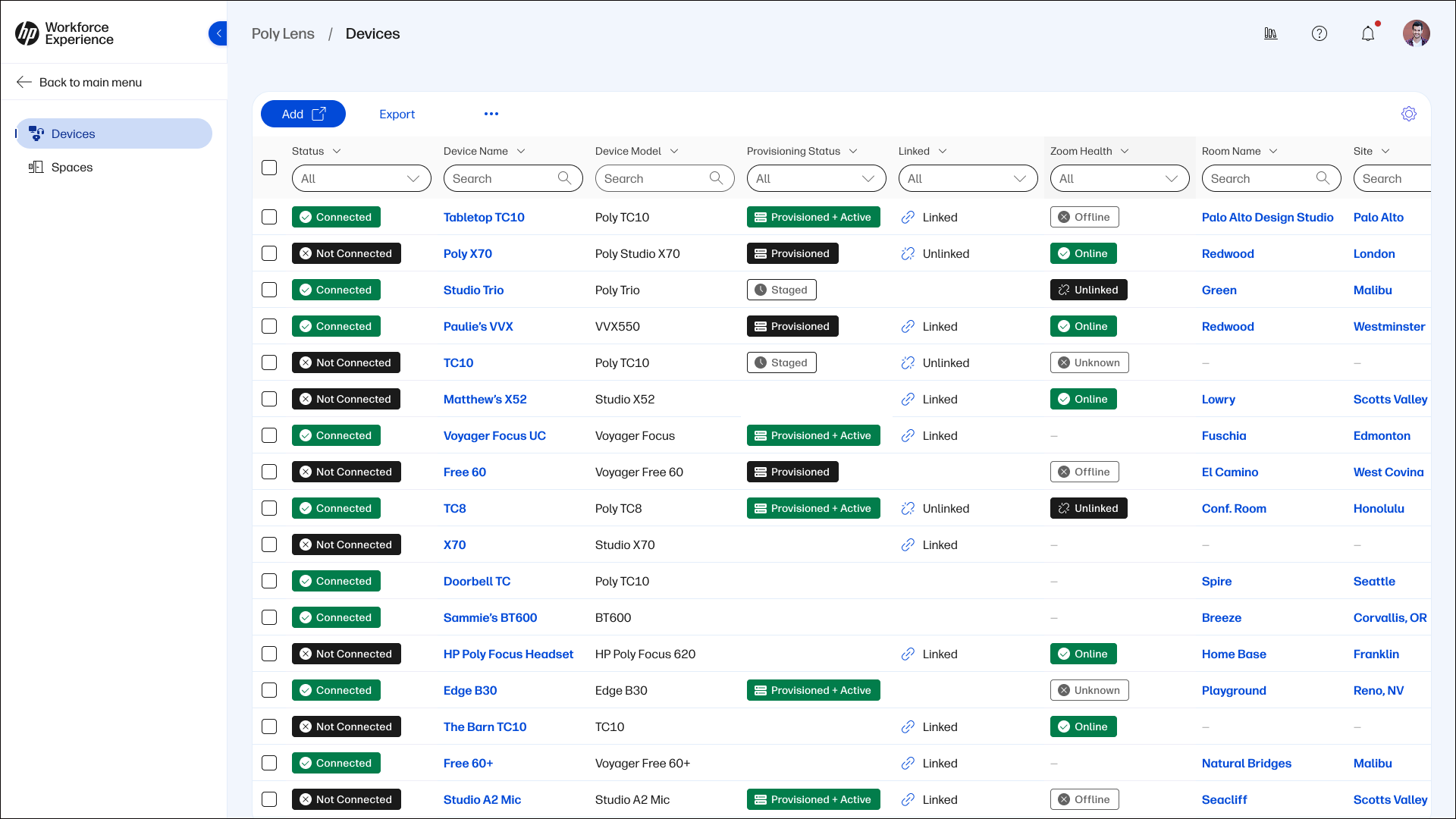
With collaboration devices now visible in WXP, you can view room, site, and device inventory in one connected experience. This makes it easier to move from a broad view to a specific location or device by using search, filters, and sorting to quickly identify what needs attention. From room systems to personal devices like headsets, this update provides clear visibility into the technology your teams rely on every day.
Troubleshoot Faster
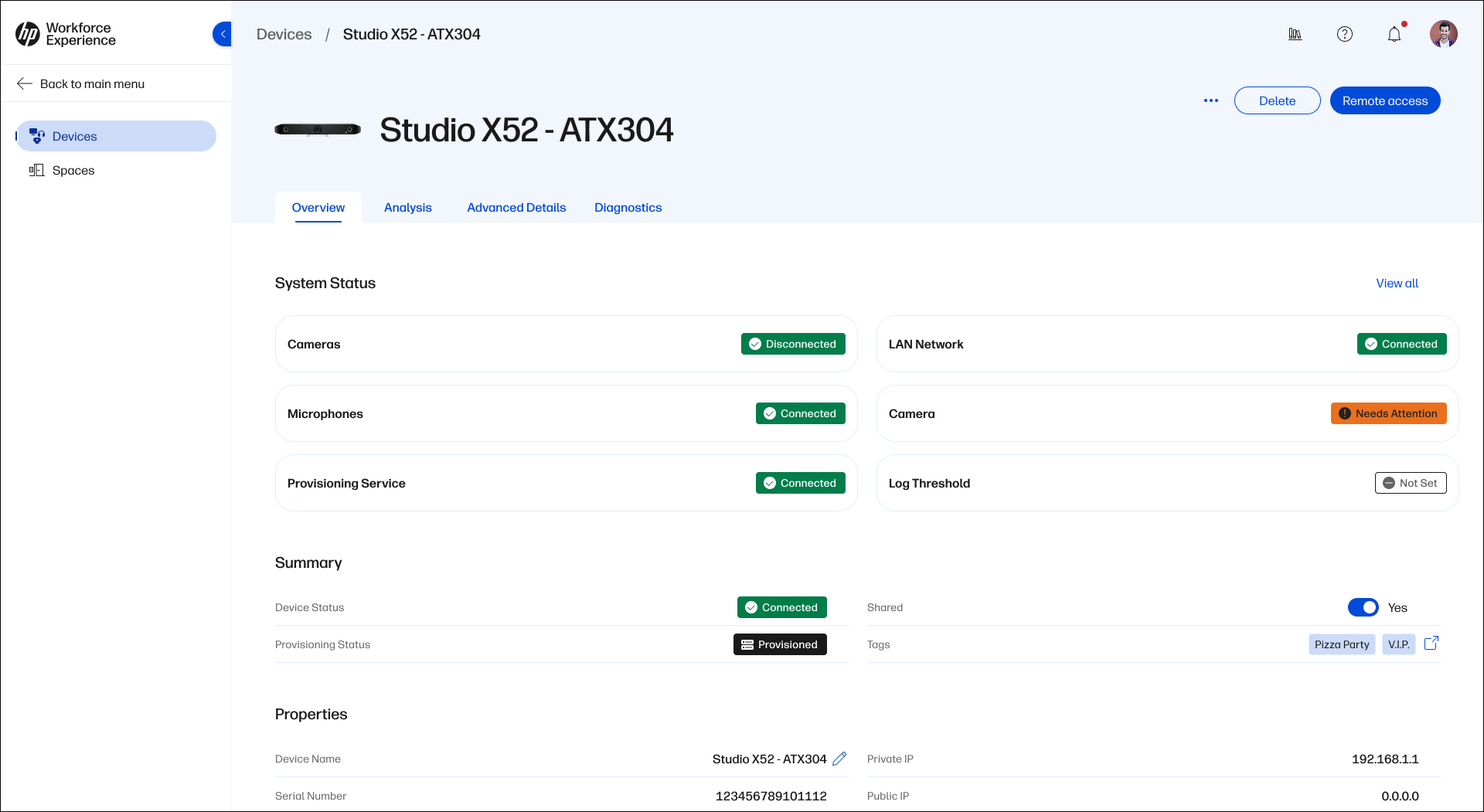
Greater visibility can help speed resolution. By pairing device and room health with diagnostic tools, you can better understand what is happening and take the appropriate action. Status, settings, and troubleshooting information help narrow down the cause and clarify the extent of the issue, including whether it affects an individual workspace or a shared meeting room.
For meeting spaces, the calendar view provides room-activity context, helping you choose a suitable time to investigate without disrupting scheduled meetings. Remote access lets you remotely control supported devices and take corrective action without an onsite visit.
Together in WXP, these capabilities help streamline the path from the initial report to diagnosis and resolution, wherever your collaboration devices are deployed.
Turning Insights into Action
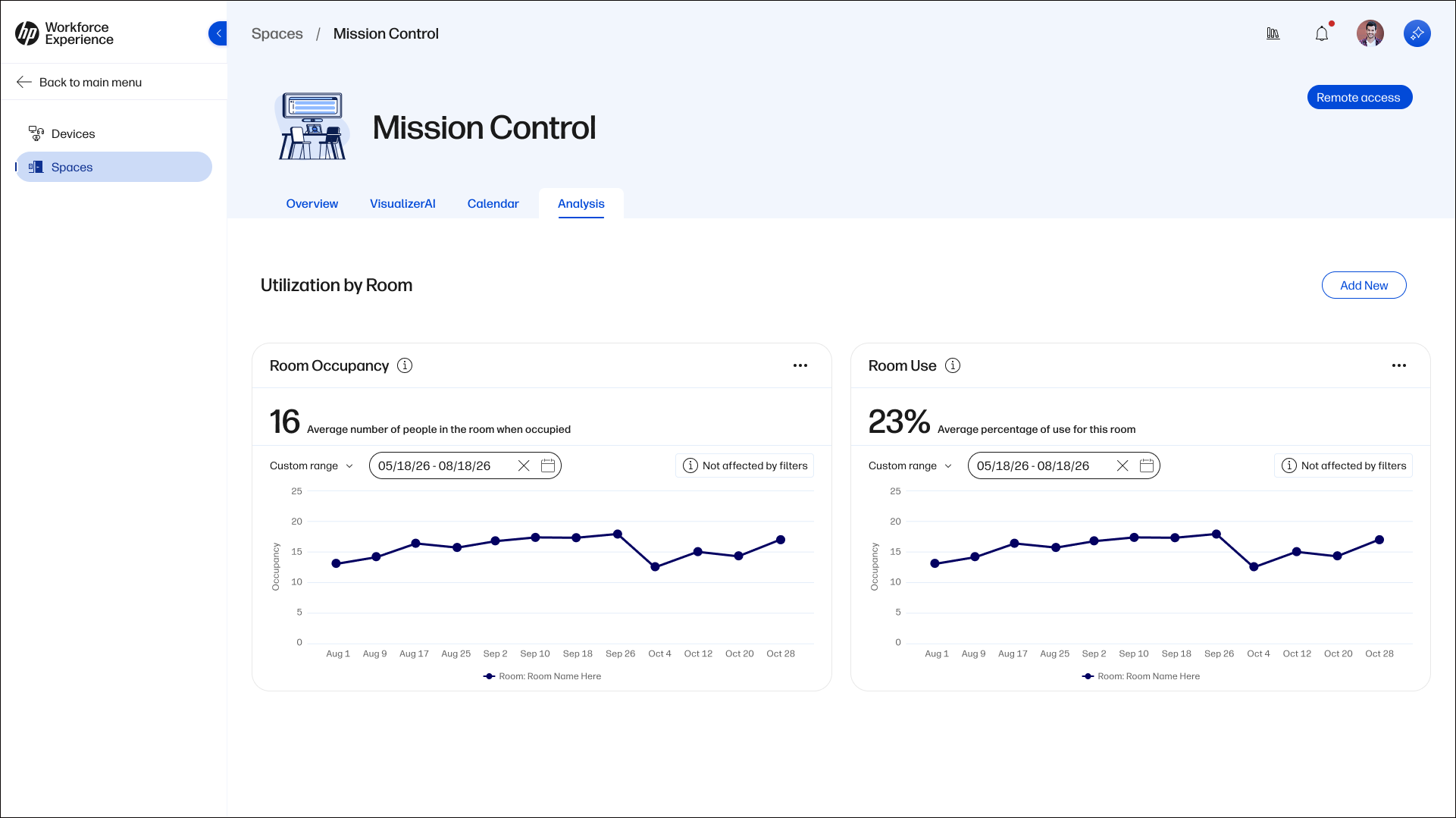
Looking across rooms, sites, and devices can reveal patterns that may be difficult to see when addressing issues individually. By distinguishing isolated problems from recurring behavior, you can better prioritize support efforts and identify where attention is needed most. This broader perspective supports decisions based on the needs of your estate, not just the latest support ticket.
Visualize Rooms with AI
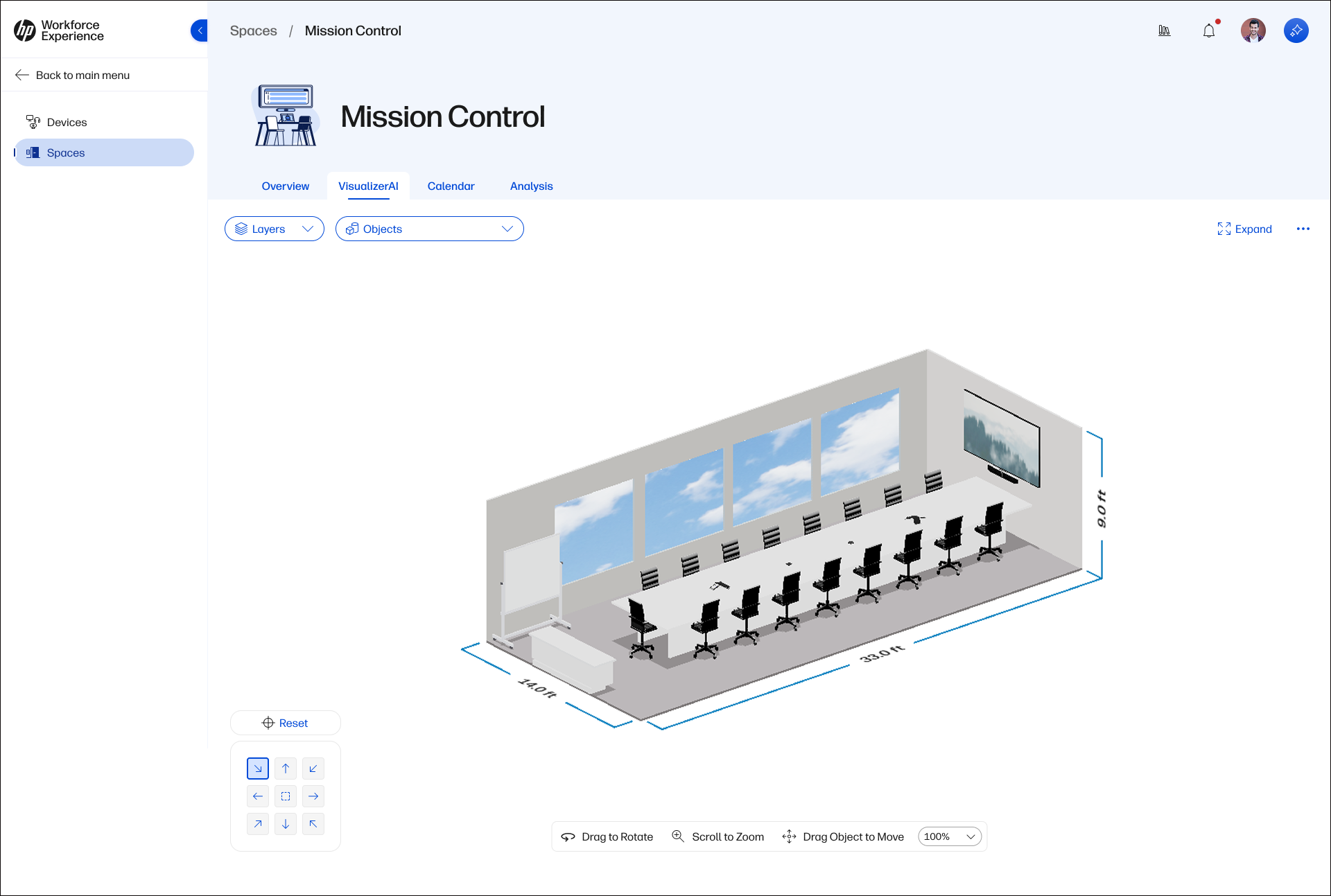
Room VisualizerAI, is now available in WXP, making WXP the first generally available collaboration room management platform to combine interactive, true-to-scale room visualization generated from user-supplied photographs and room dimensions with spatial display of the current status of supported connected collaboration devices.¹ The resulting 3D model shows how connected technology fits within the physical space, complementing inventory tables and graphs.
With an accurate visual of each space, you can explore device placement, identify gaps, and understand how equipment relates to the room layout. Remote IT teams gain a practical visual reference for investigating issues and discussing improvements without relying on an on-site description.
You can also simulate layout changes, device repositioning, or added equipment before making physical adjustments. This helps you evaluate options with greater confidence before moving devices, rerouting cables, or rearranging the room.
Alt version if there is an issue with the claim
Room VisualizerAI is now available in WXP. This interactive, true-to-scale 3D model combines room layouts and device information to show how connected technology fits within the physical space, not just in inventory tables and graphs.
With an accurate visual of each space, you can explore device placement, identify gaps, and understand how equipment relates to the room layout. Remote IT teams gain a practical visual reference for investigating issues and discussing improvements without relying on an on-site description.
You can also simulate layout changes, device repositioning, or added equipment before making physical adjustments. This helps you evaluate options with greater confidence before moving devices, rerouting cables, or rearranging the room.
Modernize without Starting Over
Your organization’s existing Poly Lens data is available within the connected WXP experience, providing a single pane of glass view without requiring you to migrate device data or rebuild room, site, or device inventory. Your existing information remains in place while WXP provides the connected management experience.
That continuity applies whether you manage personal devices, shared workspaces, meeting systems, or all three. You also gain a modern interface foundation designed to deliver a consistent experience as additional Lens capabilities come into WXP.
You preserve the work already invested in managing your environment while gaining broader visibility and a simpler path forward. Your weekend plans do not need a migration workstream.
Ready for a Closer Look?
Jump into the interactive demo and see how it all comes together.
Get Started
If your WXP and Poly Lens tenants are already connected, open the new Lens tab in WXP to explore these new capabilities today.
If you have not connected your tenants, log in to WXP and navigate to Add-ons > Poly Lens, then select Connect to begin.
For supported devices, deployment guidance, setup information, and Room Visualizer AI availability, visit the Poly Lens in WXP documentation.
¹ Based on HP’s analysis of publicly available information as of September 16, 2026, Room VisualizerAI is the first generally available feature within a collaboration room management platform to combine interactive, true-to-scale room visualization generated from user-supplied photographs and room dimensions with spatial display of the current status of supported connected collaboration devices.